
Drop a file.
Say what it should be.
Asteria is a free file converter for Mac, Windows and Linux. It works on your own computer, so your files are never uploaded anywhere.
IMG_4127.heicHEIC image
IMG_4127.jpgJPEG image, built in
This page only reads a file's name and type. Nothing is uploaded or converted here.
563 tested conversions between 119 kinds of file
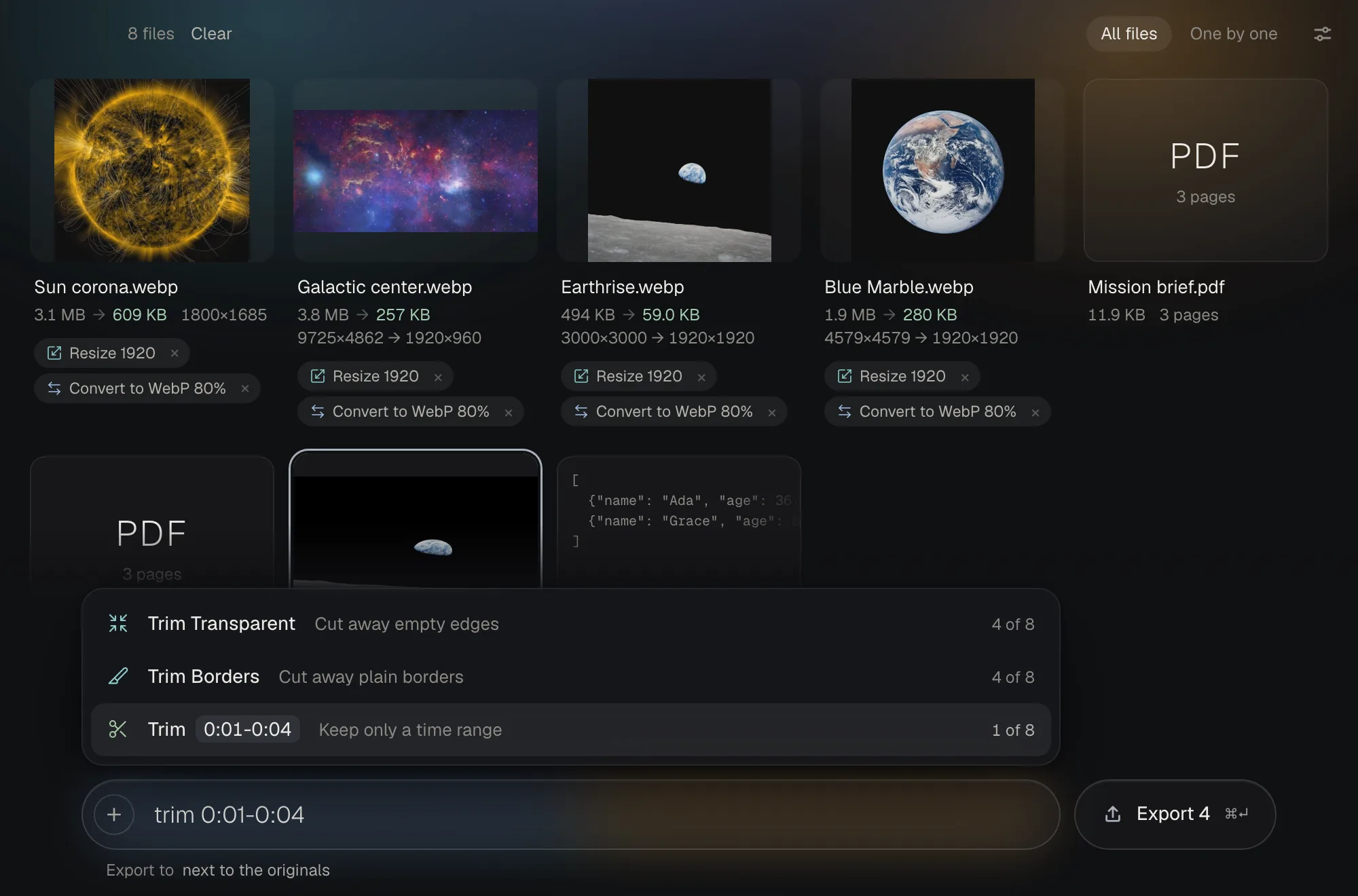
One window, one bar.
Drop files in and the likely next steps sit right above the bar, so most of the time you just click one. Type for anything else. When it looks right, ⌘↵ (Ctrl ↵ on Windows) saves the results next to the originals.
In one side, out the other.
Each of these is a real conversion, run on a real file and checked by a separate program.
- HEIC photo (iPhone)JPEG imagebuilt inHEIC photo (iPhone) to JPEG image: type “heic to jpg” in Asteria
- QuickTime videoGIF imagewith FFmpeg, a free add-onQuickTime video to GIF image: type “gif” in Asteria
- Word documentPDF documentwith LibreOffice, a free add-onWord document to PDF document: type “convert to pdf” in Asteria
- WAV audioMP3 audiowith FFmpeg, a free add-onWAV audio to MP3 audio: type “mp3” in Asteria
- EPUB ebookKindle ebook (MOBI)with Calibre, a free add-onEPUB ebook to Kindle ebook (MOBI): type “epub to mobi” in Asteria
- SubRip subtitlesWebVTT subtitlesbuilt inSubRip subtitles to WebVTT subtitles: type “srt to vtt” in Asteria
- CSV spreadsheetJSON databuilt inCSV spreadsheet to JSON data: type “csv to json” in Asteria
- GPS track (GPX)Google Earth KMLbuilt inGPS track (GPX) to Google Earth KML: type “gpx to kml” in Asteria
Find your conversion
563 conversions between 119 kinds of file. Each one was run on a real file and the result checked by a separate program.
Some of the common ones. Type a format, or what it is called, to search all of them.
- HEIC photo (iPhone) .heicJPEG image .jpgbuilt in
- PNG image .pngJPEG image .jpgbuilt in
- WebP image .webpPNG image .pngbuilt in
- JPEG image .jpgWebP image .webpbuilt in
- QuickTime video .movMP4 video .mp4needs FFmpeg
- MP4 video .mp4MP3 audio .mp3needs FFmpeg
- QuickTime video .movGIF image .gifneeds FFmpeg
- Word document .docxPDF document .pdfneeds LibreOffice
- Markdown .mdWord document .docxneeds Pandoc
- Excel workbook .xlsxCSV spreadsheet .csvneeds LibreOffice
Free, and staying that way.
Paying every month to change the three letters after a dot was always a strange deal. Asteria is free, with no account, no ads and no limit on how many files you convert.
- Nothing is uploaded
- Your files stay on your computer, and Asteria works offline. The only time it goes online is to download a free add-on you said yes to, from the address it shows you first.
- Your originals stay as they were
- Results are saved as new files, next to the originals or in a folder you pick. Nothing is ever written over a file you already have.
- Nothing to sign up for
- No account, no email address, no trial that runs out, nothing to cancel.
- Open source
- The code is on GitHub under the MIT license, along with a test that checks converting a file never opens a network connection.
Download Asteria
Free, for Mac, Windows and Linux.
Opening it the first time
Asteria isn’t signed with Apple yet, so the first time you open it your computer warns you that it can’t check who made it. You only need to do this once.
- Open the downloaded file and drag Asteria into Applications.
- Open Asteria. Your Mac says it could not verify that Asteria is free of malware. Click Done.
- Open System Settings, then Privacy & Security. Scroll down to Security, where it says Asteria was blocked, and click Open Anyway.
- Click Open Anyway once more and enter your password. From then on it opens like any other app.
Open Anyway only appears after you have tried to open the app. If it is not there, open Asteria once more, then look again.
Opening it the first time
Asteria isn’t signed with Microsoft yet, so the first time you open it your computer warns you that it can’t check who made it. You only need to do this once.
- If your browser says the file isn’t commonly downloaded, choose Keep (in Edge it is under the three dots, then Keep anyway).
- Open the installer. Windows shows a blue box that says Windows protected your PC.
- Click More info, then Run anyway, and follow the installer.
If the message says Smart App Control blocked it and there is no Run anyway button, Windows has no way to allow a single unsigned app. On recent versions of Windows 11 you can turn Smart App Control off in Windows Security, under App & browser control. That is your call, and we would rather you did not switch off a protection just for us.
Linux
Ubuntu 24.04, Debian 13 or newer, 64-bit.
Opening it the first time
- For Ubuntu or Debian, open the .deb file with your software installer and click Install.
- For the AppImage, open its Properties, turn on Allow executing file as program (or Executable as Program), then double-click it.
Linux does not warn about unsigned apps the way Mac and Windows do.